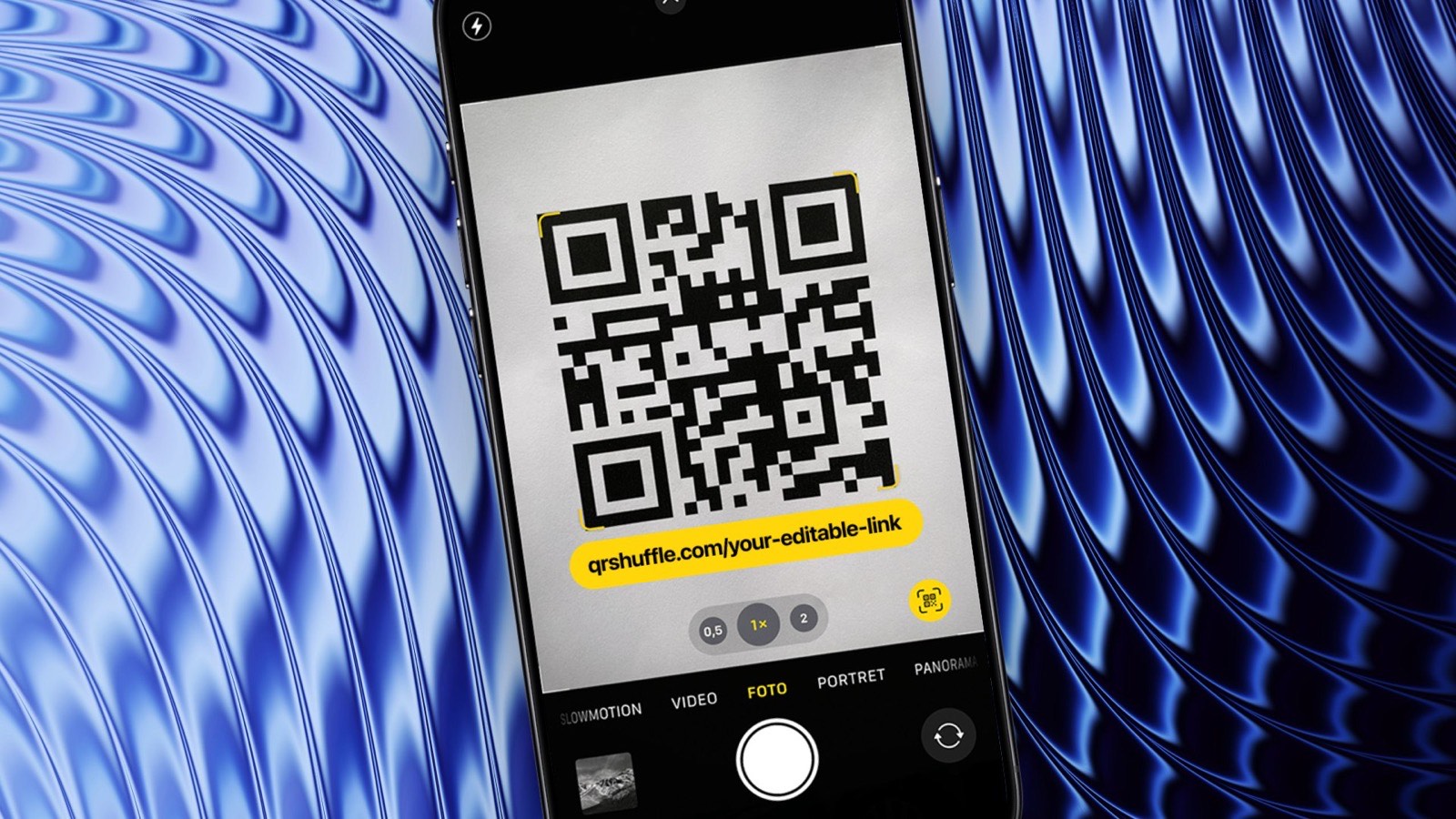
Editable QR code: how to change a QR code link after printing
People usually search “editable QR code” when they mean one of these:
- “Can I change the URL inside my QR code?”
- “How do I change a QR code link after printing?”
- “My landing page changed—do I have to reprint?”
Here’s the reality:
- Static QR code → not editable (the destination is encoded in the pattern)
- Dynamic QR code → editable (the QR encodes a short redirect link you control)
So an “editable QR code” is almost always a dynamic QR code.
Why you can’t edit a static QR code
A static QR code stores the final data directly (often a URL). If the URL changes, the QR pattern must change too.
That’s why “editing” a static code really means:
- generate a new QR code
- reprint / replace the old one
If you’re putting QR codes on packaging, signage, menus, or anything expensive to reprint, static is risky.
How editable (dynamic) QR codes work
Editable QR codes work via a redirect.
Flow:
Printed QR → short link → your destination URL
You edit the destination at the short link layer, not inside the QR image.
Related: Dynamic QR code: what it is and how it works.
What you can change (and what you should be careful with)
You can change safely
- the destination URL
- UTMs (campaign attribution)
- the content on your landing page (if the URL stays the same)
Be careful changing
- removing a destination entirely (creates dead scans)
- adding multiple redirect hops (slows down scans and increases failures)
- switching to experiences that break in in‑app browsers
Related: QR code redirects: best practices.
How to change a QR code link (step-by-step)
- Confirm the QR is dynamic
- If you generated a “static URL QR”, you can’t change it.
- Open your QR management / redirect settings
- Update the destination URL
- Keep it HTTPS.
- Keep the redirect chain short.
- Scan test on iOS + Android
- Test on cellular, not only Wi‑Fi.
- Verify analytics + UTMs
- Confirm the destination received the correct query parameters.
Best practices for editable QR codes (so you don’t break campaigns)
Keep a stable fallback destination
Campaigns end, but printed codes stay in the world.
Have a “boring but safe” page you can always redirect to:
- your homepage
- a support page
- a simple link hub
Avoid “redirect chains”
A common failure mode:
QR → short link → tracker → another redirect → destination
Each hop adds time and failure risk.
If you need tracking, do it in one place.
Don’t forget the physical side of scanning
If your code doesn’t scan reliably, editing the link won’t help.
FAQ
Can I edit the design of the QR code too?
Yes (colors, logo, frame), but design changes are separate from link editing.
If you redesign, always test scans on real phones. See: QR design contrast rules.
Why do some “editable” QR codes stop working?
The usual causes:
- the redirect service was disabled (subscription ended)
- the short link was deleted
- the destination started returning errors
Can you edit a QR code once it’s printed?
You can’t edit the printed image. You can change where it goes if it’s dynamic.
Related reads
- Dynamic QR code: what it is and how it works
- Dynamic vs static QR codes
- QR code redirects: best practices
QRShuffle: generate QR codes with editable links (change destinations later). https://qrshuffle.com/signup
Quick checklist
Test on iOS + Android. Use high contrast (dark code on light background). Keep a clear quiet zone.
Avoid long redirect chains. Add UTMs if you care about attribution.
Try QRShuffle
If you're printing QR codes for posters, packaging, menus, or events, use editable links so you don't have to reprint.
- Create your first QR: https://qrshuffle.com/signup
- See pricing: https://qrshuffle.com/pricing